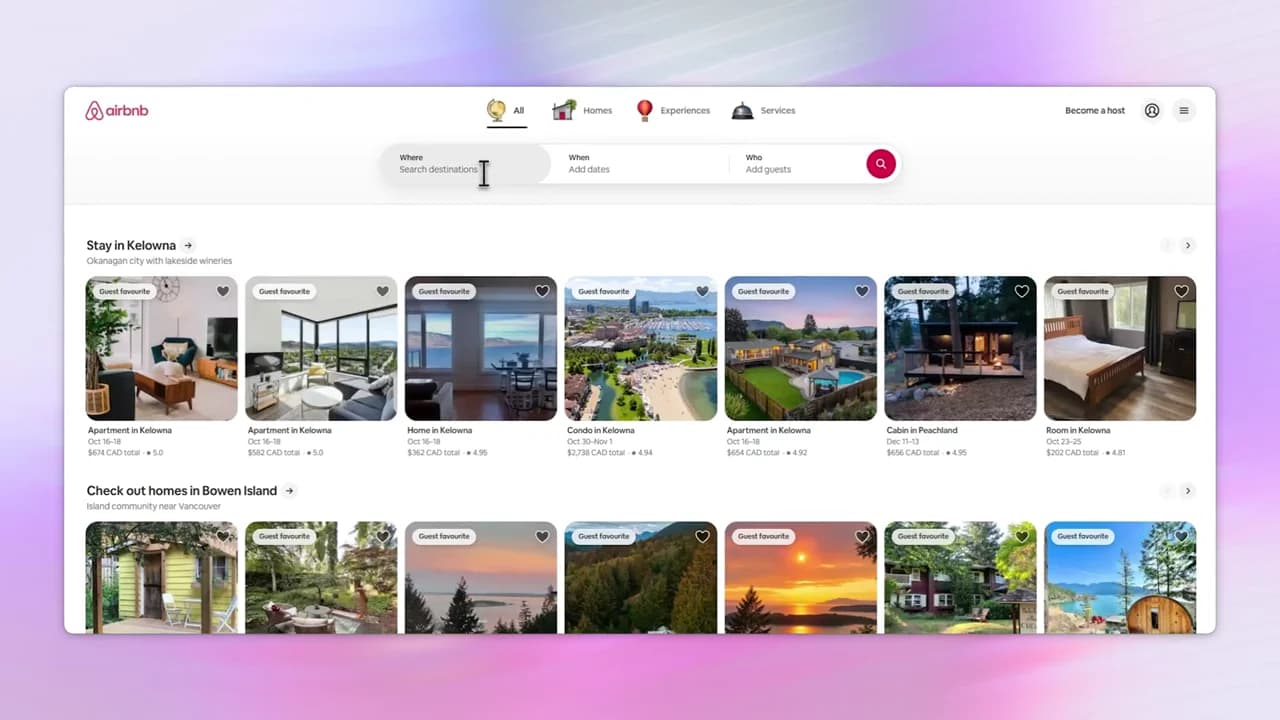

Smooth zooms. A sharper cursor. A beautiful finish. All in ScreenBuddy.
Record and edit free; subscribe to export.
Windows 10/11 · 64-bit · Also on Mac




Try the controls. See the difference.
Give your recording a little room to breathe.
Custom image uploads are available in the app.

Bring the next click closer.
Move in on clicks and typing.
A pointer with its own personality.


Move over the preview, or play a sample path. Also in the app: click animation, click effects, and skipping brief cursor changes.
From quiet subtitles to word-by-word emphasis.
 Make every click clear.
Sample text and timing. In the app: generate from audio locally, import SRT/VTT, edit words, choose font and weight, then export SRT/VTT.
Give your recording a different perspective.
Perspective preview. Add camera positions on the app’s timeline, adjust pan and distance, and turn on camera motion blur.
Watch the real 3D Camera walkthroughA file for your workflow. A link for everyone else.
 .mp41080p · Auto (up to 60 FPS)High quality · Hardware preferredDownload MP4 sampleFixed sample file. These controls preview the app’s settings.
Export locally, then keep editing while rendering continues. Hardware encoding depends on your PC.
Record and edit free. Exporting and shareable links need a subscription.
Editable cursor effects require native Windows capture (Windows 10 version 2004 or later). A fallback recording keeps the system cursor.
Your screen, a window, or an area. Add the audio you need.
See the recorder →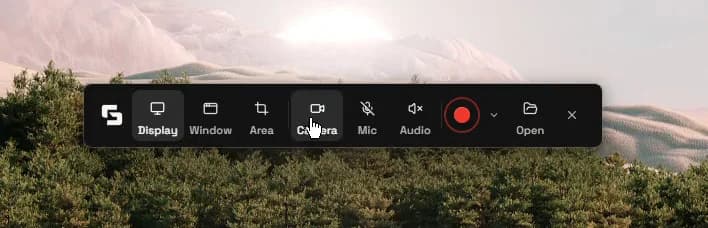
Trim the pauses. Tune the zoom. Find your finish.
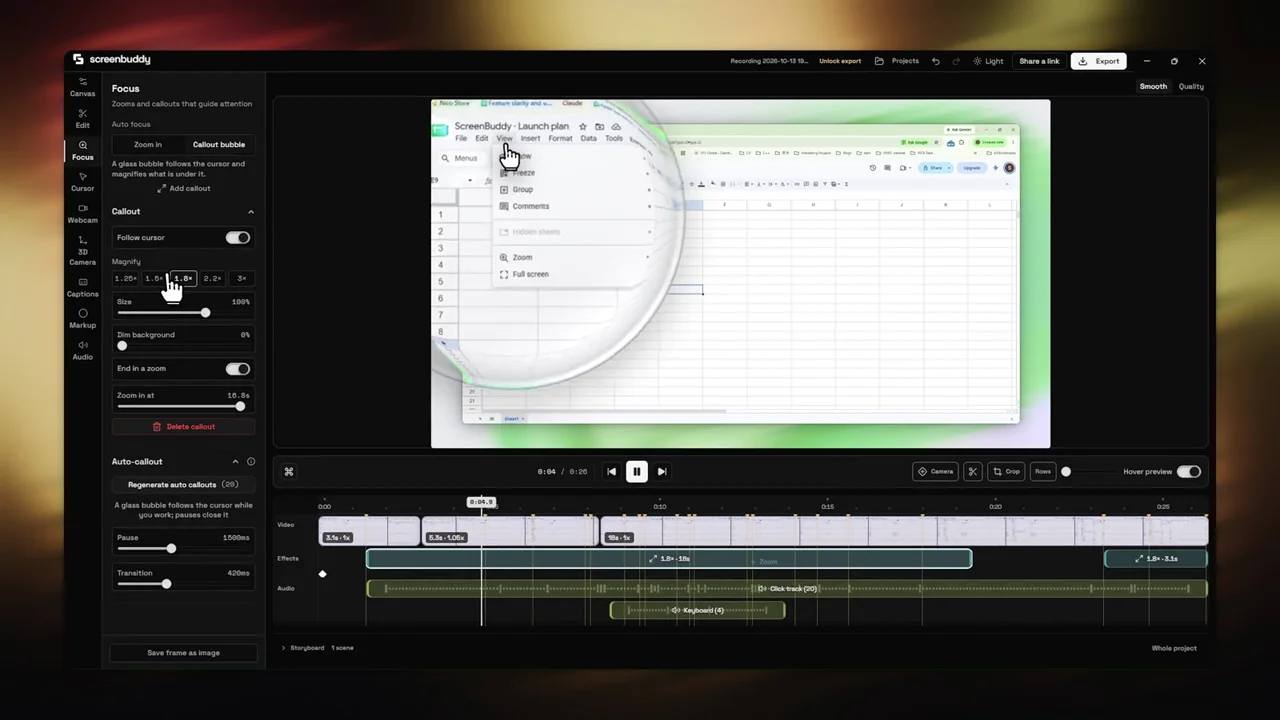
Add depth with 3D Camera. Keep creating while you export.
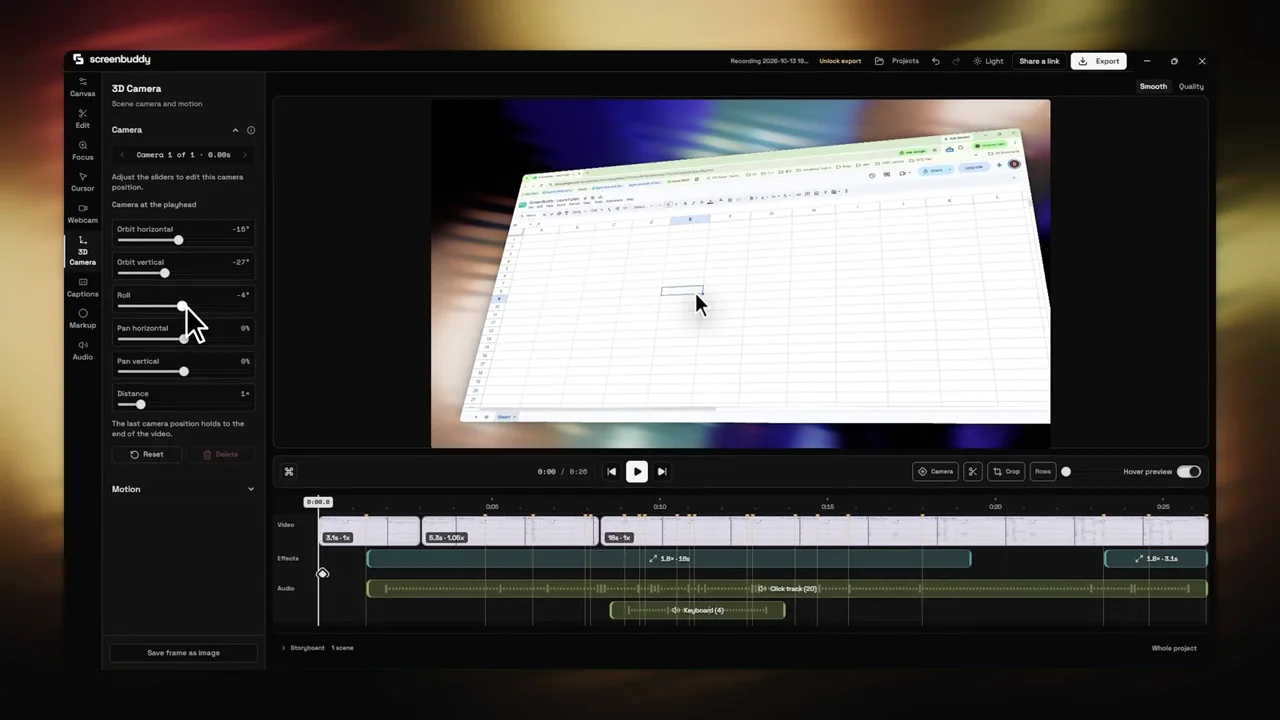
Adjust the 3D camera controls and preview perspective changes on the recording.
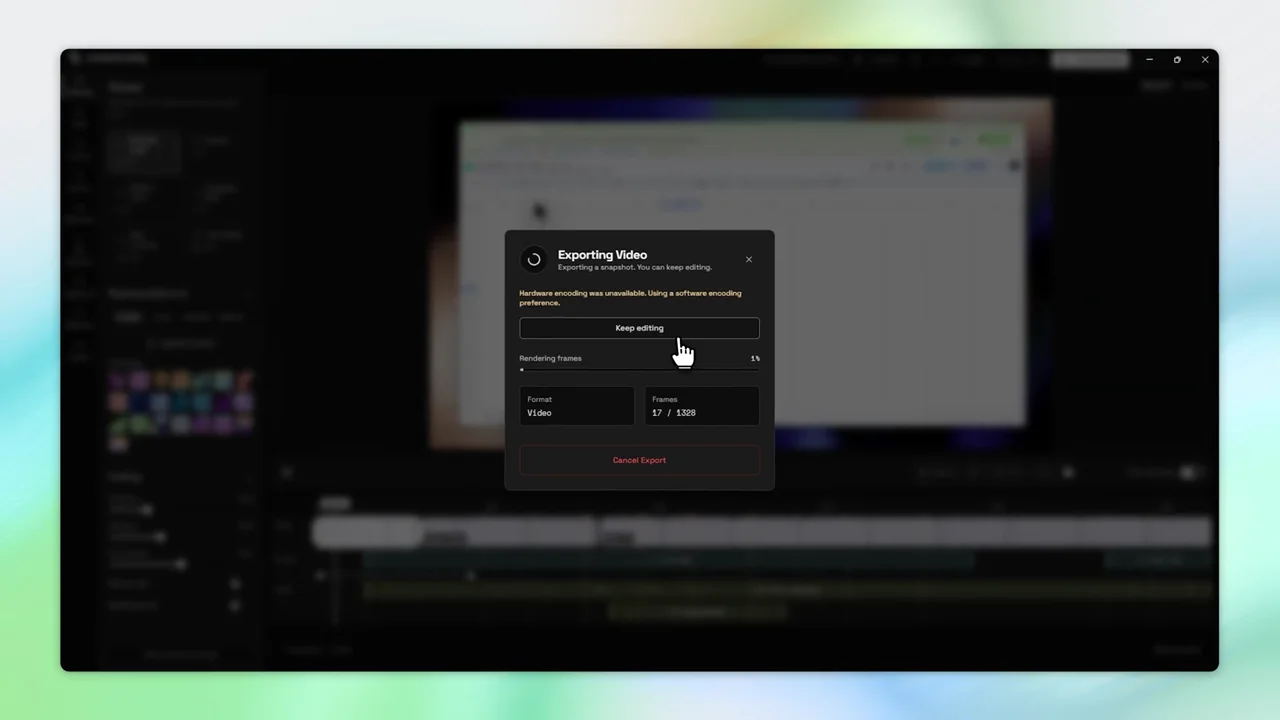
Start an export, return to the editor, and keep adjusting the canvas while rendering continues.
Try the full recording and editing workflow. Subscribe for exports and shareable links.
See pricingBilled $60 yearly, or $10 month to month. Cancel any time.
Checkout by Lemon Squeezy. Cancel any time from your account.
Buying for 5+ people? Contact usPlatforms, audio, captions, and the free download.
ScreenBuddy records a display, window, or selected area on Windows, with optional microphone, supported system audio, and webcam. Edit automatic zoom, smooth the cursor, trim pauses, adjust the canvas, add captions, and export MP4 or GIF locally. The 1.8.0 release organizes the editor into Canvas, Edit, Focus, Cursor, Webcam, 3D Camera, Captions, Markup, and Audio. Markup provides pen drawing, blur, and solid covers. Audio and optional enhancements depend on the platform and capture source. An Apple silicon Mac version is also available.
Screen Studio and Screen Charm are Mac-only. ScreenBuddy offers the same kind of polished recording workflow (automatic zoom, cursor effects, backgrounds, and captions) on both Windows and Mac, and it is free to record and edit.
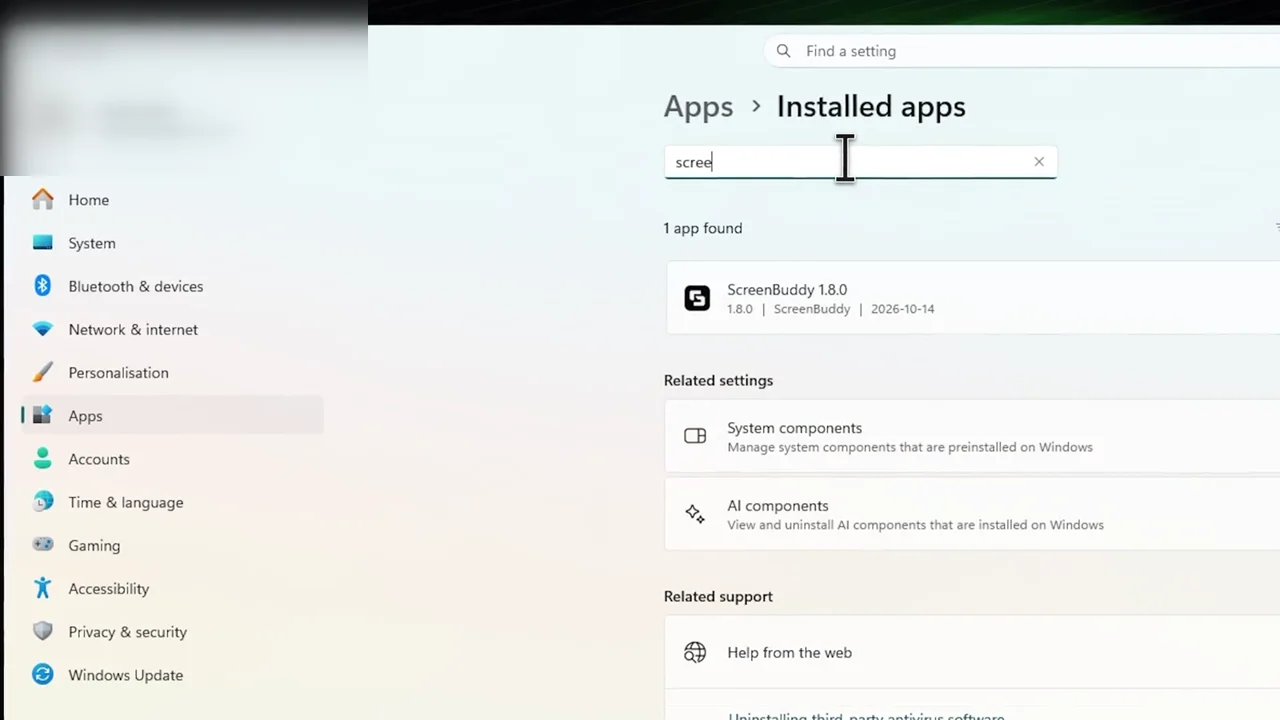
Yes. The Windows x64 installer supports Windows 10 and Windows 11. Editable cursor effects require the native Windows capture path, available from Windows 10 version 2004. If native capture falls back to a recording with the system cursor, editable cursor effects are disabled.
Yes. ScreenBuddy supports Macs with Apple silicon (M1 or later) on macOS 12 or later. Intel Macs are not supported. Some optional AI enhancements have higher system requirements; the current Mac build targets Apple silicon.
Record and edit free. Exporting and shareable links need a subscription.
Recording and editing are free. Exporting and shareable links need a subscription: $5/month billed yearly, or $10 month to month. Lifetime licenses bought earlier keep working.
System audio and microphone capture are available, but audio availability depends on the operating system and selected source. Make a short test recording and check playback before an important take. Screen recording can continue with a warning if the audio source is unavailable.
Yes. English captions use a bundled on-device speech model on Windows and Apple silicon Macs. Multilingual transcription needs an optional model download of about 148 MB. Review the text before exporting.
Export a local MP4 or GIF and publish it through your chosen destination. The 1.8.0 release also adds unlisted screenbuddy.xyz links, with Google sign-in and an active subscription. Only the finished video you choose is uploaded; viewers do not need an account. GIF has no audio.
Start your next recording with ScreenBuddy.
Record and edit free; subscribe to export.